
Analyze tool
TODO: Proof read, upload images, update links.
When you select the Analyze tool option (or press Shift+A), ReNamer launches a window, where you can enter any arbitrary text and apply rules entered in the Rules pane.
This is very useful to see the effect of the rules using dummy text (for example before using the Insert rule). It also allows to check the positions of any character in the text just by pointing to it with keyboard or mouse. The cursor position and selection information are displayed in the statusblock barof text on the right side of the windowinput (Line, Position, Right and Selection).field.
The input text may be a file name (or multiple file names) loaded from Files pane, or any text manually entered by user - which can be very useful when you want to cleanapply renaming rules to a piece of arbitrary text, for example.text.

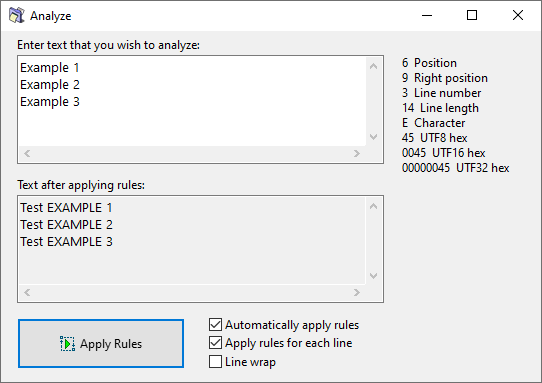
The options in the window are as follows:
| Option | Description |
|---|
Note: A combination of Line wrap and Apply rules for each line options may produce an undesired effect due to the way how Windows appliesthe line wrapping.wrapping works. Rules will be applied to each line separately, even to those created artificially as a result of line wrapping.