
Files context menu
TODO: Update links.
Right-click on the Files table content area to see the context menu that offers numerous options for manage files.
Menu
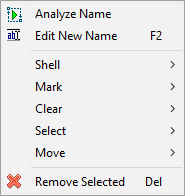
| Option | Shortcut | Description |
|---|---|---|
| Analyze Name | Open the Analyze tool, and load the selected filenames for analysis. | |
| Edit New Name | F2 |
Start manual editing of the selected filename. |
| Shell | Options for shell operations, including opening files, copying into clipboard, and deleting to the recycle bin. | |
| Mark | Options for marking specific items, including marking only changed files, and marking by mask. | |
| Clear | Options for removing specific items from the table selectively, including by status. | |
| Select | Options for selecting specific items, including selecting by name length, extension, and mask. | |
| Move | Options for moving specific items up or down. | |
| Remove Selected | Del |
Remove selected items from the table. This command does not delete the items from the disk. |
Shell menu
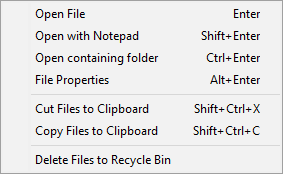
| Option | Shortcut | Description |
|---|---|---|
| Open File | Enter |
Open the selected file using its default associated application. |
| Open with Notepad | Shift+Enter |
Open the selected file with Notepad to see the raw file content. Avoid using this option with binary files as the content will not make any sense, and you may risk accidentally corrupting the file. |
| Open containing folder | Ctrl+Enter |
Launch File Explorer and open the folder where the selected file is located. |
| File Properties | Alt+Enter |
Display the File Properties dialog offered by the operating system. |
| Cut Files to Clipboard | Ctrl+Shift+X |
Place the source file paths to clipboard as a "cut" operation. If you paste these files in File Explorer, all files will be moved to one folder, no matter where they were initially located. |
| Copy Files to Clipboard | Ctrl+Shift+C |
Place the source file paths to clipboard as a "copy" operation. If you paste these files in File Explorer, all files will be copied to one folder, no matter where they were initially located. |
| Delete Files to Recycle Bin | Delete the source files to the Recycle Bin. The files will also be removed from the table. |
Mark menu
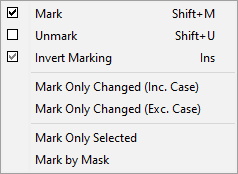
| Option | Shortcut | Description |
|---|---|---|
| Mark | Shift+M |
Mark all selected files. If some files are already marked, they remain marked. |
| Unmark | Shift+U |
Unmark all selected files. If some files are already unmarked, they remain unmarked. |
| Invert Marking | Ins |
Invert the marked state of selected files. Marked files become unmarked, and vice versa. |
| Mark Only Changed (Inc. Case) | Mark only those files whose new name differs from the original name, including differences in lower/upper case. | |
| Mark Only Changed (Exc. Case) | Mark only those files whose new name differs from the original name, excluding differences in lower/upper case. | |
| Mark Only Selected | Mark only the currently selected files, unmark all others. | |
| Mark by Mask | Mark only those files that match a specific file mask. Brings up a dialog for specifying the file mask. You can specify multiple masks by separating them with semicolons. For example: *.jpg;*.png and *Birthday*;*Holiday*. |
Clear menu
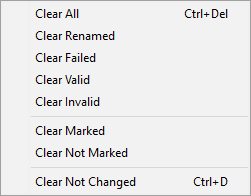
These options offer you several criteria for clearing (removing) items from the table:
- Clearing all items (shortcut
Ctrl+Del). - Clear items with a specific status: Renamed, Failed, Valid, and Invalid.
- Clear marked or not marked items.
- Clear unchanged items (shortcut
Ctrl+D), those whose new name is exactly the same as the original name and those whose new name is empty, as happens after successful renaming.
Select menu
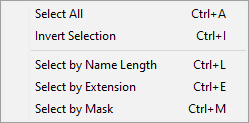
| Option | Shortcut | Description |
|---|---|---|
| Select All | Ctrl+A |
Select all items in the table. |
| Invert Selection | Ctrl+I |
Invert the selection. Already selected items become unselected, and vice versa. |
| Select by Name Length | Ctrl+L |
Select only those files whose filename exceeds a certain length (number of characters). Brings up a dialog for specifying the length. The length refers to the whole filename including the file extension and the dot. This is particularly useful for identifying filenames that may not satisfy the maximum length requirements for certain applications and file systems, like ISO 9660 used for CD/DVD. |
| Select by Extension | Ctrl+E |
Select only those files which match a specific file extension. Brings up a dialog for specifying the file extension, without the leading dot. You can specify multiple file extensions by separating them with semicolons. For example: jpg;png. |
| Select by Mask | Ctrl+M |
Select only those files that match a specific file mask. Brings up a dialog for specifying the file mask. You can specify multiple masks by separating them with semicolons. For example: *.jpg;*.png and *Birthday*;*Holiday*. |
Move menu
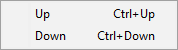
These options simply move the currently selected items up (Ctrl+Up) or down (Ctrl+Down).
Alternatively, you can move the selected items by dragging them with a mouse click.