
Mapping rule
TODO: Complete, review, update links.
This rule allows you to map a list of old filenames to a list of new filenames, which can be externally managed and loaded into the rule via clipboard or CSV file. It also allows you to capture the current set of files and their generated new names as a rule set, and then applied to a different set of files via this rule.
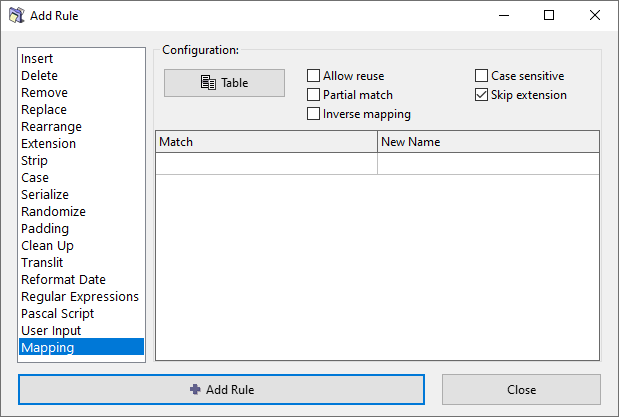
Options
Table menu
Click the Table button to access the menu for managing the mappings table.
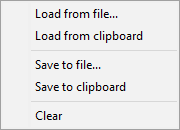
The loading and saving of mappings via clipboard allows a quick exchange of data between the rule configuration and an external application such as Microsoft Excel, LibreOffice Calc, and other spreadsheet editors.
You can also use the Export menu to convert the current list of filenames and their generated new names to a Mapping rule, by using the Export names and new names to clipboard option and then loading them into a Mapping rule.
Allow reuse
Normally, once a mapping has been applied to a file, that mapping is removed from the list of available mappings, so the remaining files in the same iteration of the preview process will not be allowed to reuse the same mapping. In other words, the mappings have ana strict one-to-one application.
If this option is enabled, all mappings can be reused multiple times, for all matching files. In other words, the mappings have a relaxed one-to-many application.
Partial match
UseApply athe mapping if thea match is found against a part of a filename.
If this option disabled, the whole filename must match for the mapping to be applied.
Inverse mapping
Simply swapSwap the Match and New Name entiresentries in the table, inversinginverting the mappings.
Case sensitive
Match case exactly. When enabled, "Apple" will not match "apple". When disabled, uppercase and lowercase letters are treated as equivalent.
Skip extension
If checked, the file extension will be excluded from processing and will remain unaffected.