
Options menu
TODO: Complete, updateUpdate links.
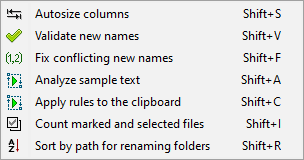
Autosize columns
Auto-size all columns, to accommodate the longest entry in each column.
Validate new names
The validation process is designed to prevent common renaming problems by analyzing the list of files and target destinations. A warning message is displayed when potential problems are discovered. Users should generally eliminate all warnings prior to renaming, otherwise items may fail to rename.
Fix conflicting new names
Add incremental numbers as suffixes to avoid conflicts in names. For example, if a new name for a file is Name1, and if such a file already exists in the target folder, then a suffix (2) is added to the new name. If more than one files have such name conflicts, further incremental numbers ((3), (4) and so on) will be added as suffixes to make sure that each file gets a unique name.
Analyze sample text
...Open the Analyze tool to apply renaming rules to any arbitrary text.
It allows you to play with the renaming rules, tweak and experiment with them, and observe the effects without having to load any files.
Apply rules to the clipboard
...Apply the current renaming rules to the clipboard content.
This is a very quick and useful mechanism for leveraging the power of renaming rules to modify externally provided text. For example, you could perform text replacements, adjust capitalization, and apply Regular Expressions.
Count marked and selected files
...Display the number of marked items, selected items, and the total number of items in the Files table.
Sort by path for renaming folders
...Sort all items in the Files table by the full path in reverse order.
This is step is commonly used when renaming folders and their content in one operation, to make sure that the content of any folder is renamed before their parent folder.