
Image processing options
This article describes all of the image processing options, most of which are located on the main window.
Main window options
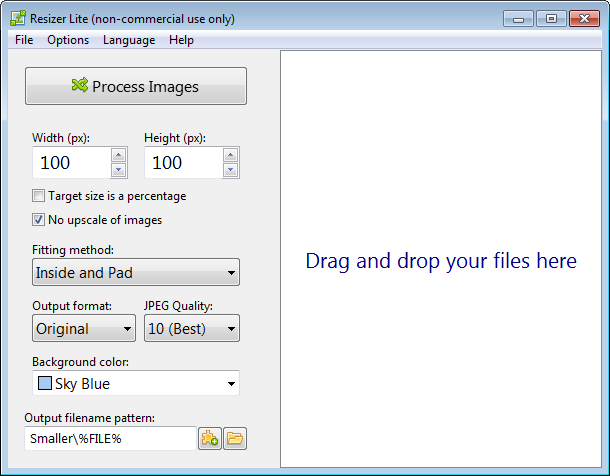
Width and Height
Define the target width and height of the resized images.
Expressed as either a percentage or a number of pixels, depending on the state of "Target size is a percentage" option.
Target size is a percentage
Toggles the units of the target width and height:
- Percentage of the original image size, when checked.
- Explicit size in pixels, when unchecked.
No upscale of images
Prevent the resizing of images beyond the original size.
In other words, it allows images to become smaller (downscale), but not bigger (upscale), than the original image size.
Fitting method
Options for controlling how the image will be resized to the target dimensions, taking into account the aspect ratio, choosing a pivot side, enabling padding and cropping.
See the Fitting methods article for a description of individual options.
Output format
Select the output image file format. Use the "Original" option to maintain the original file format.
JPEG quality
The target quality of JPEG images on a scale from 0 (worse) to 10 (best).
Background color
Select the desired background color substitute for use on semi-transparent images (e.g. PNG with alpha channel information).
Output filename pattern
File name and/or path pattern for the resized images.
A selection of meta tags is available for reusing parts of the original file path, file counter, width and height properties.
Main menu options
Keep original created date
Apply the original created date to the resized image files.
Keep original modified date
Apply the original modified date to the resized image files.