
Settings
TODO
The Settings (also called Options) allow you to configure various behavioral aspects and features of the application. You can access them via the Options main menu item, the Settings button in the toolbar, or by using the F4 shortcut key.
The available settings are split into several broad categories outlined below.
General
This section controls the general behavour of the application, including automatic startup, saving and loading of user configuration, and the visual behaviour of the main window.
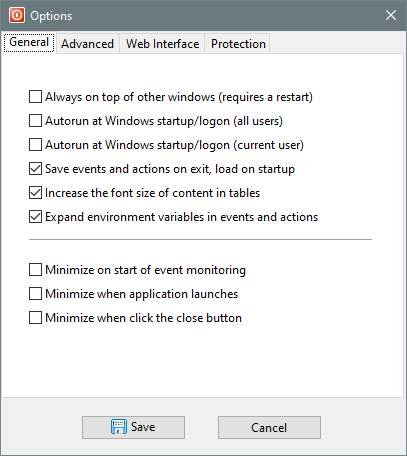
- Always on top of other windows — Keeps Shutter on top of the other windows on the desktop. Requires a restart of the application.
- Autorun at Windows startup/logon — Starts Shutter automatically when you log in to Windows. This option can be applied to all users or just the current user. In order to apply this option to all users, you must launch Shutter as an Administrator just to apply option successfully.
- Save events and actions on exit, load on startup — Remember your configured events and actions as the default preset when you exit Shutter. The same preset will be automatically loaded when you lunch Shutter again.
- Increase the font size of content in tables — This simply makes all fonts bigger in the events and actions tables.
- Expand environment variables in events and actions — You will be able to use environmental variables in the configuration of some events and actions, allowing you define dynamic paths that depend on the environment.
- Minimize on start of event monitoring — Minimize Shutter's main window as soon as the event monitoring starts.
- Minimize when application launches — Minimize Shutter's main window as soon as the application starts.
- Minimize when click the close button — Minimize Shutter's main window when you close it. It will still be running and can be accessed via the tray icon.
Advanced
This section controls some of the more nuanced behavours of the application, including how it deals with hibernation and sleep modes, the tray icon, and notifications.
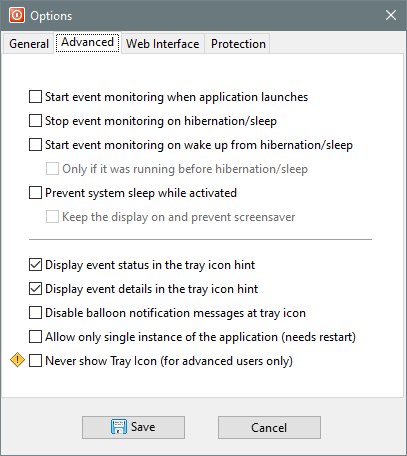
- Start event monitoring when application launches — Automatically start monitoring the preconfigured events when you launch Shutter. You may need to configure your events and actions beforehand, and enable the Save events and actions on exit, load on startup option to achieve the desired effect.
- Stop event monitoring on hibernation/sleep — Automatically stop event monitoring when computer goes into hibernation/sleep mode. This option can be useful when you use timing events (e.g. Countdown and User Inactive) which can sometimes trigger immediately after waking up from a prolong suspended state.
- Start event monitoring on wake up from hibernation/sleep — Automatically start event monitoring when computer wakes up from hibernation/sleep mode. If combined with an earlier option, it makes Shutter fully deactivated when computer is suspended and reactivated on wake up, avoiding undesirable effects due to prolong suspended state.
- Only if it was running before hibernation/sleep — Avoid reactivating events on wake up if the events were not running prior to the suspended state.
- Prevent system sleep while activated — Avoid the interference of the system sleep options while Shutter is monitoring the events or executing actions. If the system enters a suspended state, Shutter won't be able to monitor events or execute actions.
- Keep the display on and prevent screensaver — Prevent the display from turning off and the screensaver from activating due to user inactivity, if such are configured in the system power management.
- Display event status in the tray icon hint — Include the status of events in the mouse-over hint at the tray icon.
- Display event details in the tray icon hint — Include the details of events in the mouse-over hint at the tray icon. Only limited information can be displayed due to the operating system restrictions.
- Disable balloon notification messages at tray icon — Balloon-style notifications are normally used to notify the end user about the progress and status changes, like when events have been started or actions have finished executing. These notifications are also shown in the notification center. This option disabled such notifications, which can be useful for avoiding distraction and making Shutter operate silently.
- Allow only single instance of the application — By default, you can launch several instances of Shutter, each running a distinct set of events and actions independently of each other. With this option, you can prevent a new instance of Shutter from starting when it detects an already running instance. Requires a restart of the application.
- Never show tray icon — The tray icon enables access to Shutter when it is minimized, and offers some quick actions for convinience. If the tray icon is disabled, then Shutter's user interface may become inaccessible, which may be desired if you wish to run it hidden from end users.
If you have lost the ability to access Shutter's graphical user interface due it being automatically minimized on launch and the tray icon being hidden, you can re-enable the tray icon by manually editing the application settings file Settings.ini found in the application data directory. First, terminate all running instances of Shutter via the Task Manager. Then, adjust this setting HideTrayIcon=0 in the Settings.ini file. Now you can launch Shutter and it should show its tray icon.
Web Interface
The Web Interface allows you to control Shutter and your computer remotely, including the starting of events monitoring, executing actions, and even executing arbitrary commands. This is covered in depth in a separate article.
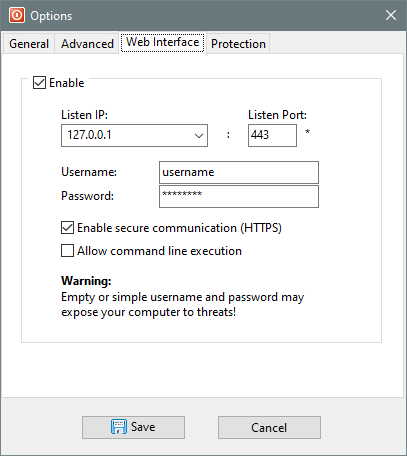
- Enable — Enable the Web Interface feature.
- Listen IP and Listen Port — IP address and port number on which to run the service. To bind to all available IP addresses, specify
0.0.0.0address. Commonly used port numbers for web services are80,443,8080,8443. - Username and Password — Credentials for authenticated access to the service. If both fields are left empty, no access restriction will be applied.
- Enable secure communication (HTTPS) — Use SSL/TLS encryption for all communications with the service. This feature uses a custom certificate not issued by a globally trusted authority, so you will need to manually accept it in your browser.
- Allow command line execution — Offer options for executing arbitrary commands and killing processes by name.
Protection
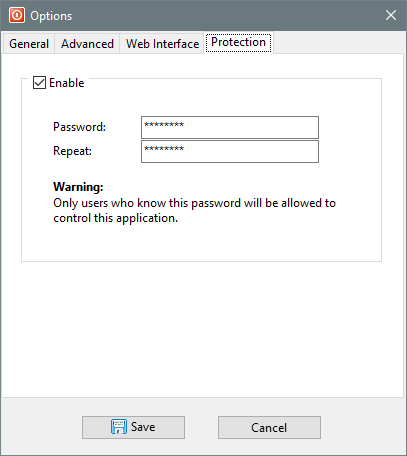
- Enable
- Password
- Repeat