
Settings
TODO
The Settings (also called Options) allow you to configure various behavioral aspects and features of the application. You can access them via the Options main menu item, the Settings button in the toolbar, or by using the F4 shortcut key.
The available settings are split into several broad categories outlined below.
General
This section control the general behavour of the application, including automatic startup, saving and loading of user configuration, and the visual behaviour of the main window.
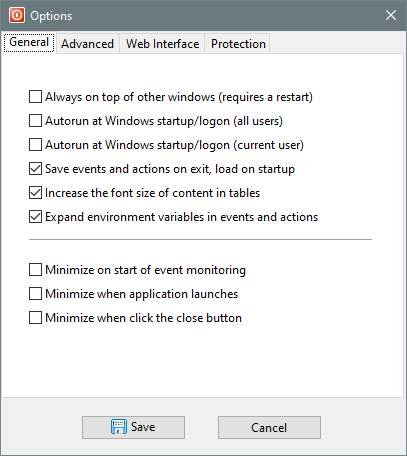
- Always on top of other windows — Keeps Shutter on top of the other windows on the desktop. Requires a restart of the application.
- Autorun at Windows startup/logon — Starts Shutter automatically when you log in to Windows. This option can be applied to all users or just the current user. In order to apply this option to all users, you must launch Shutter as an Administrator just to apply option successfully.
- Save events and actions on exit, load on startup — Remember your configured events and actions as the default preset when you exit Shutter. The same preset will be automatically loaded when you lunch Shutter again.
- Increase the font size of content in tables — This simply makes all fonts bigger in the events and actions tables.
- Expand environment variables in events and actions — You will be able to use environmental variables in the configuration of some events and actions, allowing you define dynamic paths that depend on the environment.
- Minimize on start of event monitoring — Minimize Shutter's main window as soon as the event monitoring starts.
- Minimize when application launches — Minimize Shutter's main window as soon as the application starts.
- Minimize when click the close button — Minimize Shutter's main window when you close it. It will still be running and can be accessed via the tray icon.
Advanced
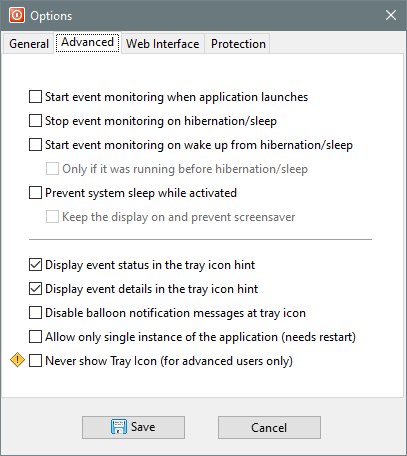
- Start event monitoring when application launches
- Stop event monitoring on hibernation/sleep
- Start event monitoring on wake up from hibernation/sleep
- Only if it was running before hibernation/sleep
- Prevent system sleep while activated
- Keep the display on and prevent screensaver
- Display event status in the tray icon hint
- Display event details in the tray icon hint
- Disable balloon notification messages at tray icon
- Allow only single instance of the application (needs restart)
- Never show tray icon (for advanced users only)
Web Interface
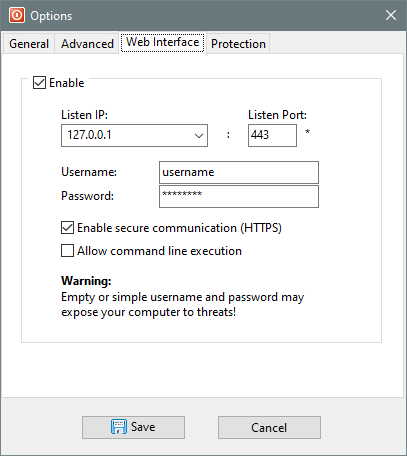
- Enable
- Listen IP
- Listen Port
- Username
- Password
- Enable secure communication (HTTPS)
- Allow command line execution
The Web Interface allows you to control Shutter and your computer remotely, inlcluding starting event monitoring, executing actions, and even executing arbitrary commands. This is covered in depth in a separate article.
Protection
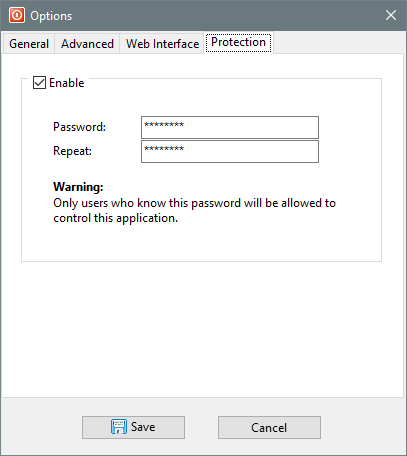
- Enable
- Password
- Repeat