
Web Interface
Shutter can expose some of its functionality through the Web Interface, letting users control their computer remotely through a web browser, including the starting of event monitoring, executing actions, and even executing arbitrary commands.
Configuration
First, you need to enable and configure the Web Interface in the Settings.
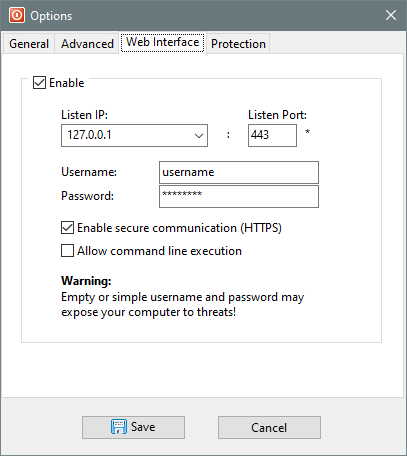
Listen IP and Listen Port parameters define IP address and Port number through which the Web Interface will be accessible. Port number can be any numeric value in range 0 to 65535, but it is recommended to use values above 1024 as many of the ports below this value are reserved by the system and standard applications. The choice of the IP address depends on the desired accessibility of the Web Interface.
| IP address | Desired accessibility |
|---|---|
| 0.0.0.0 | Allow access from all available network interfaces (default). |
| 127.0.0.1 | Allow access only from the local computer interface. |
| X.X.X.X | Any other configuration will allow access from the specified IP address. |
To check whether specified IP and Port parameters are available and not used by another application, press the "Check Port" button.

To access the Web Interface, simply enter the configured IP address with the port number in your web browser. For example, if you set IP address to 127.0.0.1 and port 8080, you can access the Web Interface via the following URL: http://127.0.0.1:8080 or https://127.0.0.1:8080 if the HTTPS option is enabled.
Security recommendations:
- Configure Username and Password to prevent unauthorized access to your computer. Use strong passwords, avoid short or easy to guess credentials.
- Enable the Secure communication (HTTPS) option to protect against snooping and unauthorized interference. This feature uses a self-signed certificate that is not issued by a globally trusted authority, so you will need to manually accept it in your browser.
- Disable the Command line execution option unless you require arbitrary command on the host computer and enabled additional process management facilities.
Firewall
Before you can successfully use Shutter's Web Interface you need to make sure that your remote computer can access your host computer. Normally, your host computer will be protected by a firewall software, blocking the remote access. You need to identify the firewall software which is running on your host computer and enable access to the IP address and port number configured for the Web Interface feature.
Windows operating system has its own Windows Firewall, but if you have installed additional security software or an antivirus software, it may come with its own firewall that takes over the built-in firewall in Windows.
External Network Access
Shutter's web interface can be accessed from any computer on the same network. If your want to access it from a computer on a different network via the Internet, you must configure your router/modem appropriately. You need to set up a port forwarding rule on your router/modem so that external traffic coming from the Internet to your public IP address will be redirected to the computer with Shutter's Web Interface in your local network, e.g. home, office.
If you are not sure how to set up port forwarding on your router/modem, you can start by reading this generic article: https://www.wikihow.com/Set-Up-Port-Forwarding-on-a-Router
Pitfalls
If you are planning to run multiple instances of Shutter and use the Web Interface at the same time you should be aware that every instance of Shutter will try to start up its own Web Interface service. This will result in the first instance successfully activating the Web Interface service while other (later) instances failing with an error message that looks like this "Could not bind socket. Address and port are already in use".
To continue using multiple instances of Shutter you can set up a dedicated copy of Shutter for running the Web Interface service and use a separate copy for running multiple instances of Shutter without the Web Interface.