
Main window
The main window is the single workspace for selecting, entering, adjusting, and converting colors.
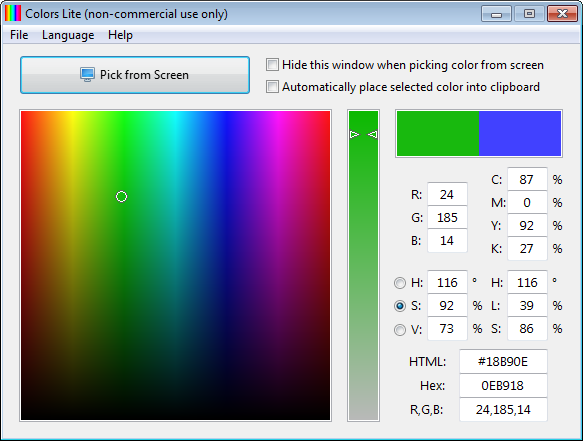
Color palette and slider
The large gradient square and the narrow vertical slider to its right work together as a unified color selector. The three radio buttons (H, S, V) determine which HSV component is mapped to the slider. The palette then displays the two-dimensional space of the remaining two components.
With H selected (the default), the slider spans the full hue spectrum and the palette shows saturation on the horizontal axis and brightness on the vertical axis. This is the most familiar layout for HSV-based color picking. Switching to S assigns the saturation range to the slider, while V assigns brightness. These alternative modes are useful for exploring variations while holding one component fixed.
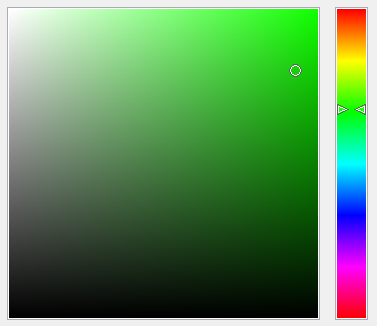
Click anywhere in the palette or drag to select a color. The small circle marks the current position in the palette. The arrows on the slider mark the current slider value. Both are display-only position indicators.
Color slots
The two color rectangles in the upper right are independent color slots. Each slot holds its own color independently, making it easy to compare two colors or keep one as a reference while adjusting the other.
The active slot reflects all current color changes. Clicking the other slot immediately switches focus to it and loads its color as the new working color. There is no visual indicator showing which slot is currently active.
Color model inputs
The input fields display the current color across four models simultaneously:
- RGB — Red, Green, Blue.
- HSV — Hue, Saturation, Value.
- HSL — Hue, Saturation, Lightness.
- CMYK — Cyan, Magenta, Yellow, Key.
Editing any value and pressing Enter, or moving focus to another field, immediately recalculates and updates all other fields. Use the Up and Down arrow keys to step a value incrementally.
Note: Switching between input fields, even without changing a value, can cause small shifts in other fields. Because color model conversions are not always lossless, each time a field is applied the color is recalculated from that model's values, which may slightly affect other representations. See Color management for more background.
Color format fields
Three fields below the model inputs display the current color in common code formats:
- HTML — Standard RGB hex used in HTML/CSS with a
#prefix, e.g.#007FFF. - Hex — Hex color code in reversed byte order (BGR), e.g.
FF7F00. - R,G,B — RGB components as comma-separated decimal values.
All three fields are editable. Type a value and press Enter, or move focus away, to apply it as the new selected color.
Options
Two checkboxes at the top of the window control picking and clipboard behavior:
- Hide this window when picking color from screen — Temporarily hide the main window while the eyedropper is active, so it does not obstruct the area being sampled. See Picking colors from screen.
- Automatically place selected color into clipboard — Copy the color to the clipboard each time a new color is picked, without a manual copy step. The format used is configured in Settings.