
Picking colors from screen
The built-in eyedropper lets you sample any color visible on your screen, regardless of which application is displaying it. When activated, a screenshot of the desktop is taken immediately and used as the source for picking, so the captured colors remain stable even if the desktop changes underneath.
Starting the eyedropper
Click Pick from Screen or press F11 to activate the eyedropper. The magnifier overlay appears immediately, ready to sample colors.
If Hide this window when picking color from screen is checked, the main window hides itself before the screenshot is taken, so it does not appear in the captured image.
Magnifier overlay
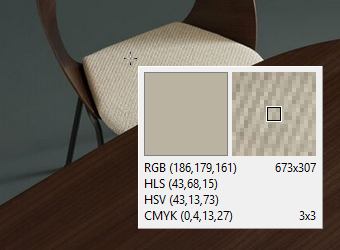
The overlay shows two panels side by side. The left panel displays the current color as a solid preview. The right panel shows a zoomed fragment of the screen centered on the cursor, with a small rectangle indicating the bounds of the active spot — the area being sampled.
Below the panels, the overlay shows the current color across all four models. The screen coordinates of the cursor are displayed in the top right, and the active spot size is shown in the bottom right.
Navigating and picking
Move the cursor to position the picker over the desired color. For precise adjustments without the mouse, use the arrow keys to move the picker one pixel at a time. Hold Ctrl while pressing an arrow key to move by 10 pixels at a time.
Left click or press Enter to confirm the selection. Right click or press Esc to cancel without changing the current color.
Spot size
By default, the picker samples a single pixel (1x1). Increasing the spot size causes the colors within that area to be averaged into a single color value, which can help when sampling noisy or dithered surfaces.
The spot rectangle in the right panel of the overlay reflects the current spot size setting. The spot size is configured in Settings.