
Analyze tool
The Analyze tool openslets you preview how the current renaming rules transform a windowpiece whereof you can enter arbitrary texttext, and testinspect yourcharacter currentpositions rulesin againstthe it,input and output, without renaming any actual files. OpenA ittypical fromuse is confirming the Filesexact andinsertion Tools toolbar or press Shift+A in the main window.
The input text can be typed manually or loaded from file names in the Files pane using the Analyze Name option in the Files context menu. Rules from the Rules pane are applied to the input and the result is displayed alongside it. This is particularly useful for verifying rule behaviour before committing to a rename — for example,position when setting up an Insert rule.
Open confirmit in either of these ways:
Enter, or Shift+A. This only opens the dialog. It does not load the current selection of filenames and does not clear text that is already there.
In both cases you can type or paste text directly into the dialog after it opens.
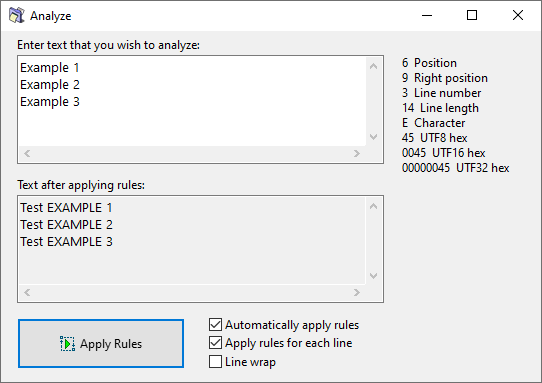
The available options are:
| Option | Description |
|---|---|
| Automatically apply rules | Apply rules whenever the input text changes, so you do not need to press the Apply Rules button after each edit. |
| Apply rules for each line | Apply the rules to each line individually rather than to the whole text at once. |
| Line wrap | Wrap long lines to fit within the width of the input field. |
Note: Using Line wrap together with Apply rules for each line can produce unexpected results. Line wrapping introduces artificial line breaks, and rules will be applied to each of those wrapped fragments as if they were separate lines.
The dialog works on plain text only. There is no file behind the input, so the result can differ from the New Name column. In particular, FilePath will be empty in Pascal Script rules, and rules that read file properties or Meta Tags have nothing to extract.