
Filter settings
TODO: Update links.
Filter settings give you a finer control over which files and folders get added to ReNamer.
Access these settings via the Main settings, the Tools menu above the Files table, or by clicking on the filter icons in the status bar. You can use a range of methods for adding new files and folders and the selected filter settings will be applied consistently in all cases.
Note that the changes to filter settings are applied only to the newly added files/folders and do not affect items that were are already added to the Files table.
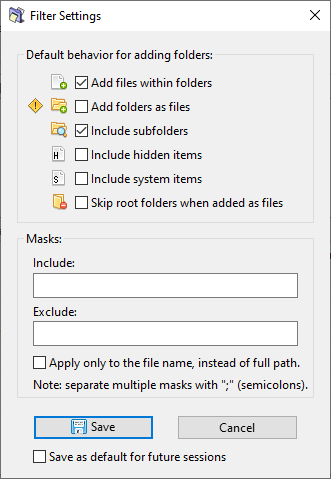
Default behaviour for adding folders:
- Add files within folders – Scan the content of folders for contained files and add them to the table for renaming.
- Add folders as files – Add folders to the table for renaming, as if they are ordinary files. This essentially allows you to rename folders. Care must be taken when renaming folders and their contents at the same time.
- Include subfolders – Scan all folders recursively. If not selected, subfolders will be ignored.
- Include hidden items – Include or exclude items marked as "hidden" in the file system. This may include system or otherwise protected files.
- Include system items – Include or exclude items marked as "system" in the file system. Care must be taken when renaming system files as it may cause issues with stability of the operating system and applications.
- Skip root folders when added as files – When Add folders as files and Include subfolders options are enabled, this option skips adding top level folders for renaming and only adds the subfolders for renaming.
Masks:
- Include and Exclude – All added files (or folders as files) will be filtered according to the specified masks. For example, if you enter
*.jpg;*.gif;*.pngas an Include mask, only files matching these extensions will be added. Everything else will be filtered out. The Exclude mask works in the opposite way, it will filter out everything that matches the mask. - Apply only to the file name, instead of full path – The filter masks can be applied just to the filename or the whole path, whichever suits your needs.
The filter settings can be saved as default for future sessions using the option located below the Save button.