
Main settings
TODO: Proof read, update links.
This section describes the settings that change ReNamer's behaviour in various ways.
General settings
These settings control the general behaviour of the application.
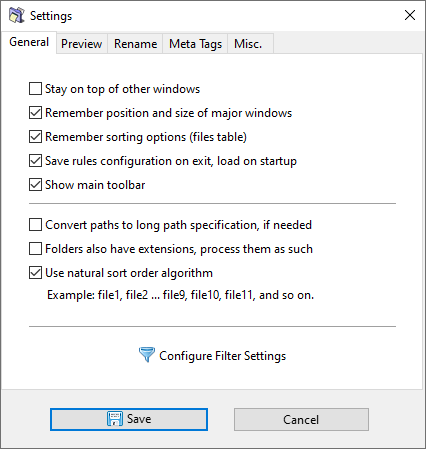
| Option | Description |
|---|---|
| Keeps the ReNamer window This feature is useful when you are using the drag-and-drop method to add files from Windows Explorer. When you are working in Windows Explorer, the ReNamer window does not vanish below the Windows Explorer window. |
|
| Remember |
|
| Remember sorting options (files table) | ReNamer will retain the file sorting order in the next session. |
| Save rules configuration on exit, load on start up | Remember the currently loaded rules/preset on exit and load them automatically on the next start up.
As of v7.2.0.6 Beta, the default preset is remembered by the preset name, rather than via an anonymous default preset, unless the preset was in the modified state at the time of saving. |
You can still use the main menu or the shortcuts to access the actions normally presented in the |
This will prefix paths with
\\?\ to increase the Prior to v5.74.5 Beta, a dot in the name of a folder was also considered to identify an extension, hence, the Skip Extension option in rules also applied to folders. In newer versions the extension in folders is no longer treated as such, however, this behavior can be changed with this setting. Use natural sort order
Sorting algorithms
| Sorting | Example | Description |
|---|---|---|
| Natural |
Name1.ext Name2.ext Name3.ext Name10.ext Name20.ext |
Numbers are sorted in their natural order. |
| Lexicographical |
Name1.ext Name10.ext Name2.ext Name20.ext Name3.ext |
Sorts like in a dictionary. All entries are sorted based on character positions, counted from left. |
Preview settings
These settings are applicable only to the previewing.
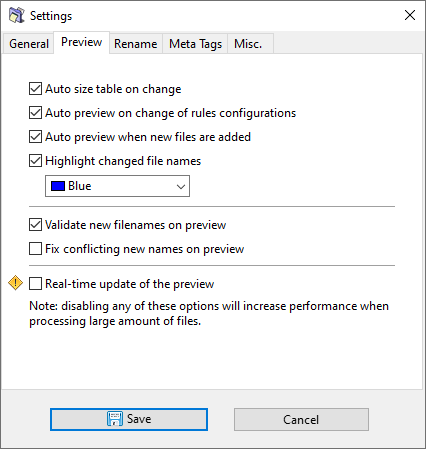
| Option | Description |
|---|---|
| Autosize table on change | Each column resizes automatically to accommodate the longest name in it. |
| Auto preview on change of rules configurations | Whenever a rule is added/deleted/edited, the preview refreshes |
| Auto preview when new files are added | Whenever a file is added, the preview refreshes |
This is a great way to visually identify files which get impacted by
- There are duplicates in the New path column
- New path contains forbidden characters
- New path is already taken by an existing file
- New path exceeds maximum allowed length
If this option is enabled, when you click the Preview button, files will be updated one-by-one to provide real-time visual feedback.
WARNING: ReNamer continues to accept user inputs (mouse/keyboard) in order to update the graphical user interface. Any interaction with the user interface while files are being processed may lead to unpredictable behavior. Use this option with EXTREME CAUTION, only for cases when some heavy processing is done on each file, for example, using hash/checksum functions or other types of content analysis.
Rename settings
These settings are applicable to the renaming process.
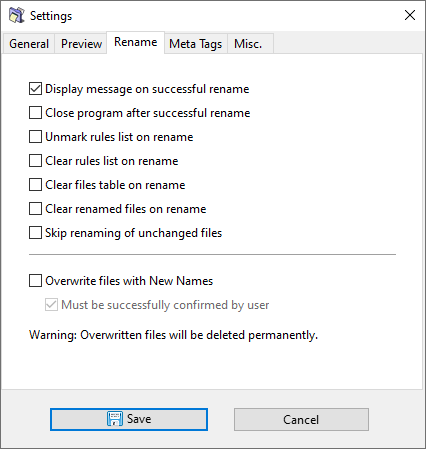
ReNamer can boost your productivity by doing certain operations on its own. On the other hand, you may want to have the flexibility of choosing your options each time. So this panel lets you decide how to strike a balance.
| Option | Description |
|---|---|
| Display message on successful rename | Disable if you do not want a message shown each time.
This setting does not affect the error messages. |
| Close program after successful rename | Useful if you use ReNamer sparingly, i.e. rename and close.
In case of problems, ReNamer stays open. |
| Unmark rules list on rename |
Note that even files that were not renamed in the last round will get cleared off. So, disable this option if you tend to rename your loaded files in 2-3 separate renaming operations.
This will make the Undo option unusable. Clear renamed files on rename Clears off the files once you have finished renaming them.
Note that the files that were not renamed will remain behind, so that you can apply a new set of rules to them.
Note that the currently marked set of rules may not change some file names (for example, if you want to insert a string at 10th position, and we have some files with shorter file names.) Even in such cases, the files are considered to be renamed.
This will make the Undo option unusable. Skip renaming of unchanged files Normally, all marked files get renamed to their corresponding new name, even if the new name matches the original name. This is done this way to maintain consistency with other relevant options which apply to renamed files. However, if you wish to avoid renaming unchanged files, you can do so by enabling this option. Overwrite files with new names If there is a naming conflict as a result of renaming, the newly renamed files can overwrite the existing files with the same names automatically.
Note that the name conflict can occur with a file that exists in the same folder, but which is NOT loaded in ReNamer.
Note also that multiple files from the same folder may be renamed in such a way that most of them get overwritten in sequence. In the worst case, only the last file to be renamed will survive.
WARNING: Your files can be overwritten and deleted forever. Must be successfully confirmed by user This option is applicable only when the Overwrite files with new names option is enabled.
If enabled: ReNamer will pop up confirmation dialog for every file that is to be overwritten. The old file will be overwritten only if you confirm. (If the renamed file has no conflicts in its folder, ReNamer will rename it without asking for permission.).
If disabled: If a renamed file has the same name as an existing file, ReNamer will overwrite the old file silently.
WARNING: Your files can be overwritten and deleted forever.
Meta tags settings
These settings are for meta-tags only.
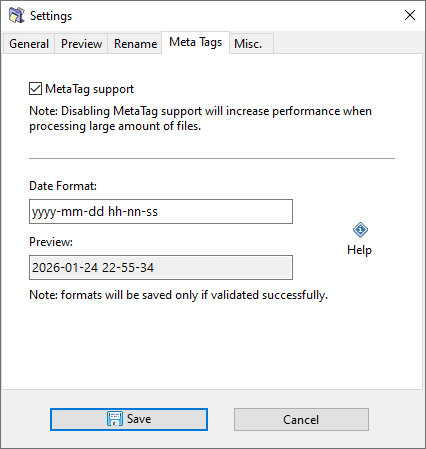
| Option | Description |
|---|---|
| Meta tag support | Extracting meta tags from files can require significant system resources. If you do not need meta tags, disable this option. |
| Date format | The specified date format will be used for formatting date & time meta tags. See Date and Time format for available formatting options. |
| Preview | Tests the specified date-time format using the current time. |
Miscellaneous settings
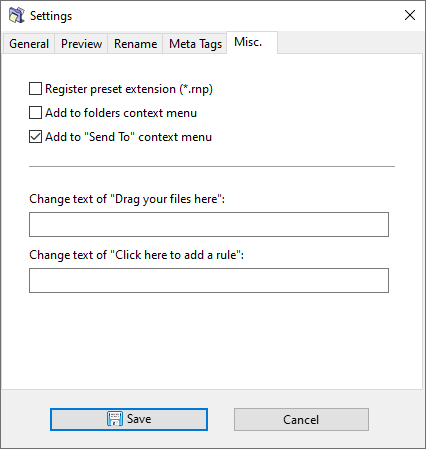
A general-purpose tab to provide all miscellaneous settings.
| Option | Description |
|---|---|
| Register preset extension (*.rnp) | Associate the .rnp extension with ReNamer. |
| Add to folders context menu | in Windows Explorer, a ReNamer option is added to the context menu for folders. |
| Add to "Send |
in Windows Explorer, a ReNamer option is added to the Send To context menu. |
| Change text of "Drag your files here" | |
| Change text of "Click here to add a rule" |