
Managing rules
TODOTODO: Proof read, upload images, update links.
This section explains how to add rules, remove rules, edit a rule and change the order in which they are applied to files and folders.
Adding rules
 button,
Click inside the Rules area,
Press the Ins key when the ReNamer window is active.
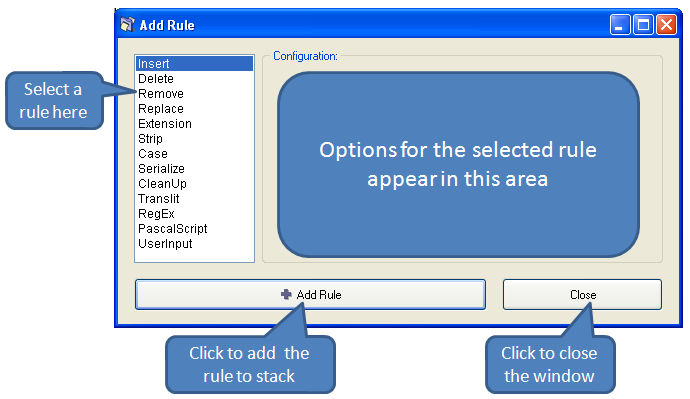
The Add Rule window pops up.
button at the bottom of the window. The rule is added to the stack and the window is closed.
Repeat steps 1-5 to add more rules. Each new rule is added at the end of the stack.
To close the window without adding a rule press the "Close" button (or the window close icon at the top right corner).
button,
Click inside the Rules area,
Press the Ins key when the ReNamer window is active.
The Add Rule window pops up.
button at the bottom of the window. The rule is added to the stack and the window is closed.
Repeat steps 1-5 to add more rules. Each new rule is added at the end of the stack.
To close the window without adding a rule press the "Close" button (or the window close icon at the top right corner).
Removing rules
To remove (delete) an existing rule, select it and press DEL or click on the  button.
Changing the order of rules
All rules are applied to each file in the order they appear. Even with the same set of rules, the end-result can be very different if the order of the rules is changed.
You can change the order of rules using any of the following methods:
Using the and
and  buttons.
Pressing CTRL + Up/Down arrows.
Drag-and-drop any rule with mouse.
buttons.
Pressing CTRL + Up/Down arrows.
Drag-and-drop any rule with mouse.
Editing rules
Editing a rule means changing its parameters and options, and then saving the rule.
You can edit a rule using any of the following methods:
A window similar to the Add Rules window appears. There are only two minor differences: the button at the bottom is titled Save Rule, and the rules list in the left pane is greyed out (because you are not supposed to select rules in this window).
Change the parameters and options, and press the Save Rule button or ENTER.
Selecting a rule
When a rule is selected, its entire row is highlighted. Only one rule can be selected at a time.
To select a rule, use any of the following methods:
Marking and unmarking a rule
A rule is marked by putting a tick in its check box . Conversely, it is unmarked by removing the tick
  .
.
ReNamer uses only the marked rules for the preview and renaming operations.
So unmarking a rule is useful to temporarily disable the rule without having to remove it from the Rules pane.
To mark/unmark the rules:
Repeat of any of these actions toggles the marked/unmarked status.
The reasons for unmarking a rule are: