
Managing rules
This page explains how to add, remove, edit, and reorder rules in the Rules pane.
Most actions for managing rules are available via the toolbar above the pane, the right-click context menu, or keyboard shortcuts. See the Rules menu article for a full reference.
Adding rules
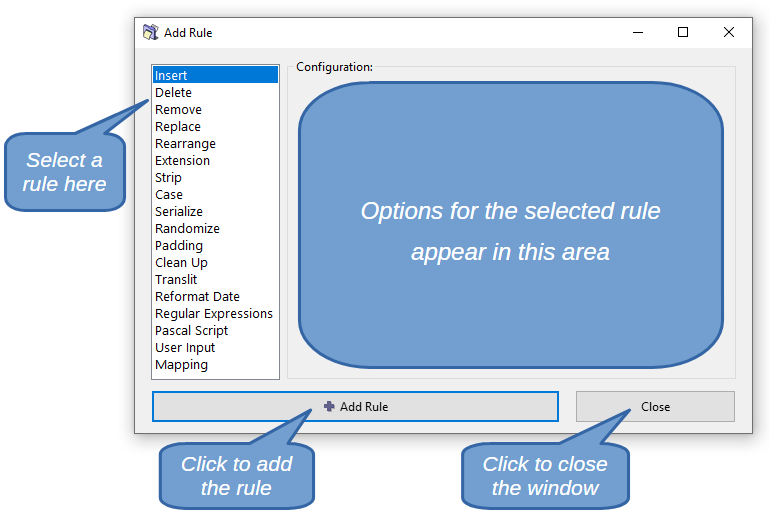
To open the Add Rule dialog, click the Add Rule button in the toolbar or press the Insert key. You can also right-click in the Rules pane and select Add Rule, Add Rule (above), or Add Rule (below) to control where the new rule is inserted.
Select the desired rule type from the list on the left. Its options appear immediately in the configuration area on the right. Set the parameters as needed, then click Add Rule to add it to the stack. To add another rule, repeat the process. Click Close to dismiss the dialog without adding a rule.
To duplicate an existing rule, select it and press Shift+Ins, or use Duplicate Rule from the context menu. The duplicate is inserted immediately below the original.
Removing rules
Select a rule and press Del, or use Remove Rule from the context menu.
To remove all rules at once, press Shift+Del or use Remove All Rules.
Reordering rules
Rules are applied to each file in the order they appear in the pane. The same set of rules can produce very different results depending on their order.
To reposition a rule, use any of the following:
- Click the Move Up or Move Down buttons in the toolbar.
- Press
Ctrl+UporCtrl+Down. - Drag the rule to the desired position.
Editing rules
To edit an existing rule, use any of the following:
- Double-click it.
- Select it and press
Enter. - Right-click it and select Edit Rule.
The rule's configuration dialog opens, pre-populated with the current settings. Adjust the parameters and click Save Rule to apply the changes.
Marking and unmarking rules
Marking is independent of selection. Only marked rules are applied during preview and renaming. Unmarked rules are skipped entirely.
Unmarking a rule is a convenient way to temporarily disable it without removing it from the pane.
To toggle the marked state of a rule, click its checkbox or select the rule and press Spacebar. To mark or unmark all rules at once, use Mark All (Shift+M) or Unmark All (Shift+U) from the context menu.
Annotating rules
Any rule can be annotated with a custom comment, visible in the Comment column of the Rules pane. This is particularly useful for documenting complex rules such as Pascal Script or Regular Expressions.
To add or edit a comment, select the rule and press Shift+Enter, or use Comment from the context menu.
Saving rules as presets
A set of rules can be saved as a preset and reloaded on demand, making it easy to reuse common rule configurations across sessions. See Using presets for more information.