
Pascal Script rule
TODO: Complete, review, update links.
This rule allows you define your own renaming logic and integrate external tools. It uses the Pascal Script programming engine with syntax and conventions similar to Delphi/Pascal language. It allows you define your own renaming logic and integrate external tools. The rule comes with a number of preloaded example scripts. We will see how to use them, and how to write your own script.
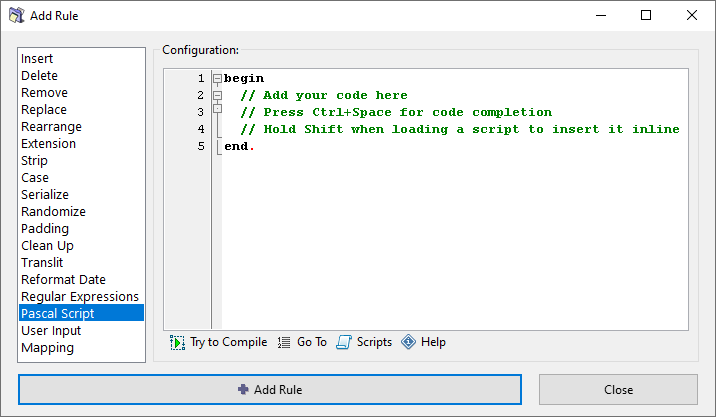
Writing your own script
...To write your own script, you need to have knowledge of Pascal Script syntax and conventions, and be familiar with the list of built-in types and functions. All that you can learn using a dedicated Pascal Script reference section.
Let's assume that you already know how to write scripts.
The general workflow is as follows:
The editor provides basic syntax highlighting and auto-completion for built-in functions, via the CTRL+Space shortcut.
To get you started, let's try this example script, which will simply prefix each filename with "Example" text:
begin
  FileName := 'Example ' + FileName;
end.
Loading a script
You can access your local scripts repository via the the Scripts menu. The menu will show you a list of preloaded example scripts and any scripts which you have saved previously. Click on any of the script names in the menu to load it into the editor.
You can assemble your script using multiple scripts by holding down the SHIFT key when loading a script, which will insert it inline instead of replacing the whole script, just make sure to combine them correctly.
In addition to the preloaded example scripts, you can find more examples and user contributed scripts at: