
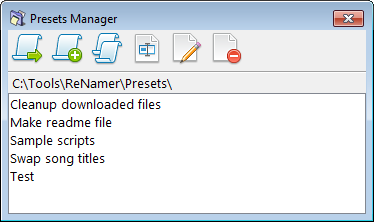
Presets Manager
The Presets Manager provides options for managing your collection of presets, including loading, appending, duplicating, renaming, deleting, and creating application shortcuts for presets.
Open it via Main Menu » Presets » Manage, or press Ctrl+P from the main window.
 Load a preset
Load the selected preset, replacing the current set of rules.
You can also press Enter to load the currently selected preset.
- Hold
Ctrlwhen loading a preset to automatically close the window. - Hold
Shiftwhen loading a preset to append rules from the selected preset to the current set of rules.
 Append a preset
Append rules from the selected preset to the current set of rules.
This is a useful way to merge rules from multiple presets.
 Copy a preset
Create a duplicate preset file with same rules.
The duplicate will have the same base name with COPY appended to the end.
This is useful as a starting point when creating a variation of an existing preset.
 Rename a preset
Rename the selected preset. A prompt will appear to enter the new name.
You can use path delimiters in the new name to create a directory structure for presets.
 Delete a preset
Delete the selected preset.
This action permanently deletes the preset file from disk.