
Using presets
A preset is a named collection of rules that can be saved and reloaded on demand. Presets can also store filter settings, making it easy to reuse complete renaming configurations across sessions. Presets can also be used for unattended renaming via command line.
Saving a preset
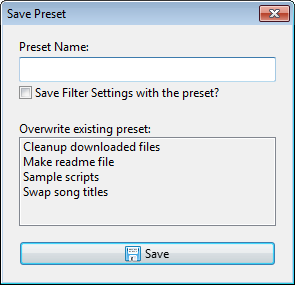
- Set up the desired rules in the Rules pane. Optionally configure filter settings to include with the preset.
- Press
Ctrl+S, or use Presets » Save As from the main menu. - Enter a name for the preset, or select an existing preset from the list to overwrite it.
- Check the option to include filter settings if needed.
- Click Save.
Press Esc or close the dialog to cancel without saving.
Loading a preset
Presets can be loaded via Presets » Load in the main menu or via the Presets Manager.
Loading a preset replaces the current set of rules. To add rules from a preset to the existing stack instead of replacing it, hold Shift while selecting the preset from Presets » Load.
For quick access, the first nine presets can be loaded directly using Ctrl+1 through Ctrl+9. Presets are ordered alphabetically, so their shortcut assignment can be controlled by renaming them.
Managing presets
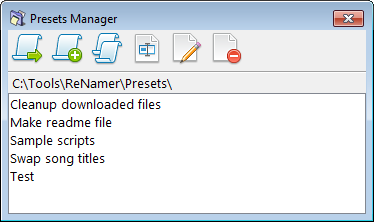
The Presets Manager provides options for managing your collection of presets, including loading, appending, duplicating, renaming, deleting, and creating application shortcuts for presets.
Open it via Main Menu » Presets » Manage, or press Ctrl+P from the main window.
Presets directory structure
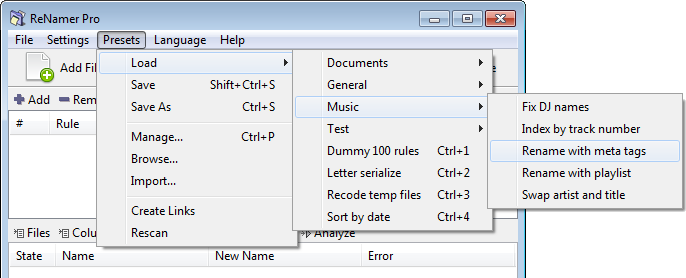
Preset files can be organised into subfolders, which is useful when managing a large collection. To save a preset into a subfolder, include the folder name in the preset name when saving, using a backslash as a separator. For example, entering Music\Cleanup saves a preset named Cleanup inside a Music subfolder.
Presets can also be rearranged manually by browsing to the presets folder via Presets » Browse and moving the files in Windows Explorer.
Locating and transferring presets
Presets are stored as *.rnp files in a Presets folder on disk. The exact location depends on the installation type:
- In a portable installation, the
Presetsfolder is located in the same directory asReNamer.exe. - In a standard installation, it is located in the user profile folder.
The full path is shown at the top of the Presets Manager window. The Presets » Browse menu option opens that folder directly in Windows Explorer.
To transfer presets to another computer or installation, copy the *.rnp files from the source presets folder and place them in the presets folder on the target, or import them via Presets » Import.
See also Application Data Storage for more information on locating application data.
Manual editing of preset files
The normal way to modify a preset is to load it through the main interface, modify the rules, and then save the preset again.
Manual editing of preset files with a text editor (e.g. Notepad) is possible but highly discouraged. Small mistakes can easily produce a corrupted preset. Avoid manual editing unless you know exactly what you are doing.
Example preset file content:
[Rule0]
ID=Insert
Config=TEXT:Example;WHERE:1;POSITION:1;INSERTAFTERTEXT:;INSERTBEFORETEXT:;RIGHTTOLEFT:0;SKIPEXTENSION:1
Marked=1
Comment=This is an example rule
Syntax:
- Rule definitions are grouped in sections headed by
[Rule0],[Rule1], and so on. ID=identifies the type of rule.Config=contains the encoded rule configuration.- Parameters are separated by
;. - Each parameter follows
Name:Valueformat. - Parameter values are URL-encoded.
- Parameters are separated by
Marked=stores the marked/unmarked state of the rule.Comment=stores an annotation for the rule.