
Presets Manager
The Presets Manager provides options for managing your collection of presets, including loading, appending, duplicating, renaming, deleting, and creating application shortcuts for presets.
Open it via Main Menu » Presets » Manage, or press Ctrl+P from the main window.
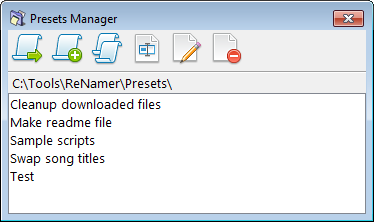
 Load a preset
Load the selected preset, replacing the current set of rules.
You can also press Enter to load the currently selected preset.
- Hold
Ctrlwhen loading a preset to automatically close the window. - Hold
Shiftwhen loading a preset to append rules from the selected preset to the current set of rules.
 Append a preset
Append rules from the selected preset to the current set of rules.
This is a useful way to merge rules from multiple presets.
 Copy a preset
Create a duplicate preset file with same rules.
The duplicate will have the same base name with COPY appended to the end.
This is useful as a starting point when creating a variation of an existing preset.
 Rename a preset
Rename the selected preset. A prompt will appear to enter the new name.
You can use path delimiters in the new name to create a directory structure for presets.
 Delete a preset
Delete the selected preset.
This action permanently deletes the preset file from disk.
 Create a shortcut
Create an application shortcut (for example on the Desktop) that loads a preset or renames files with a preset.
Two shortcut types are available:
- Load with a preset: open a new ReNamer window with the selected preset loaded, so you can review or adjust the rules before renaming.
- Rename with a preset: load the selected preset and automatically rename the files, without a confirmation prompt.
Drop files or folders onto the shortcut to process them. If the preset was saved with filter settings, those settings are applied to the incoming files.
See the command line article for additional information on integration and automation features.
On Windows, a convenient place for such shortcuts is the Send To folder, which adds an option to the shell context menu for sending selected files or folders to a specific application. In the save dialog, enter %APPDATA%\Microsoft\Windows\SendTo in the address bar to jump there.