
Rearrange rule
TODO: Complete, review, update links.
This rule allows you to chop up the existing file name and reuse any/all of the parts in any order to compose a new name.
- You can also add your own text, or use meta tags while composing the new name.
- You can also use the whole original name, and insert literal text (or meta tags) around it.
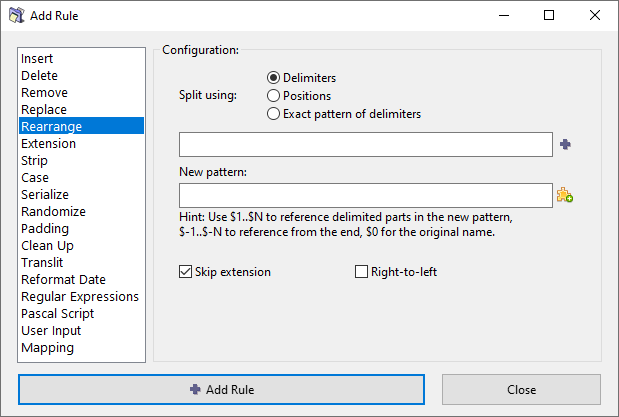
Options
Split using
Specify how to split the existing name into parts, using either a set of delimeters,delimiters, an exact pattern of delimiters, or exact positions.
Enter a list of delimiters/positions, separating them with | (vertical pipe) character. Alternateivly,Alternatively, click the  button to add another delimiter/position used for splitting.
A more detailed explanation of different split options can be found in the section below.
New pattern
Compose the new name from the parts created from the original name.
All the parts resulting from splitting the original name can be accessed via short codes $1, $2, $3, and so on. You can also reference the parts using indexing from the opposite end via negative short codes $-1, $-2, $-3, and so on. The full original name is accessible via short code $0.
Using a mix of short codes and any other text you can rearrange the name and add additonaladditional text around the rearranged parts.
Click the  button to insert Meta Tags into the new pattern.
Skip extension
If checked, the file extension will be excluded from processing and will remain unaffected.
Right-to-left
Inverts the normal direction for splitting the subject text, so that it goes from right and towards left.
Split options
Delimiters
Chop the name where the delimiters occurs.
| character to separate them.
The chopped parts are numbered from the start as $1, $2, $3, and so on, or from the end as $-1, $-2, $-3, and so on.
If the delimiter occurs at the very beginning of the name, the resultant $1 part will be empty, because there is nothing on the left side of the delimiter.
The number of parts into which the filename is broken down depends solely on the number of delimiters in the filename. If you reference fewer parts in the output pattern that the number of available parts, not referenced parts will be discarded.
For example, take filename "Artist - Title" and to swap it around one would use " - " as a delimiter and "$2 - $1" as a new pattern which will result in "Title - Artist".. However, if some filename appears with more dashes like "Artist - Title - Album" the result will also be "Title - Artist" and the trailing part "Album" will be discarded. To avoid silently discarding parts of the filename, consider using the Exact pattern of delimiters option instead.
Positions
...Chop the name at the indicated position.
| (vertical pipe) character.
The chopped parts are numbered from the start as $1, $2, $3, and so on, or from the end as $-1, $-2, $-3, and so on.
Exact pattern of delimiters
...Chop the name using an exact pattern (sequence) of delimiters.
With this option you basically define how many parts you want the filename to be split into and the order in which the delimiters must occur. If you specify 1 delimiter then you will end up with exactly 2 parts, if you specify 2 delimiters you'll get 3 parts, and so on.