
Replace rule
TODO: Complete, review, update links.
This rule finds the specified text in the file name and replaces it with another text, optionally using positional criteria and wildcard patterns.
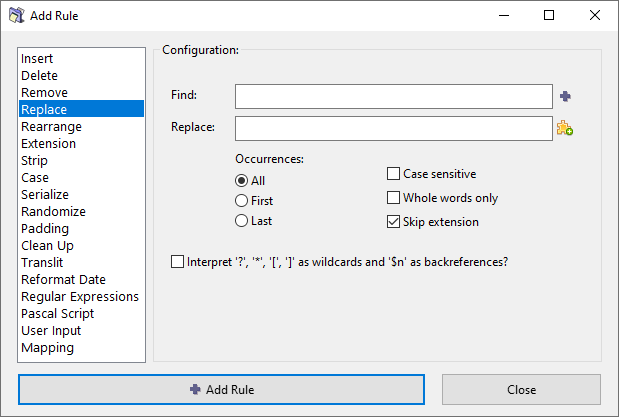
Options
Find
Enter the text to be replaced.
You can add multiple pieces of text to be replaced in one rule, by separating them with *|* delimiter. Click the  button to add the delimiter, or type it out manually.
Replace
Enter the text which will replace the Find text.
When using multiple Find text pieces, separated by the *|* delimiter, every nth piece in the Find field will be replaced by the corresponding nth piece in the Replace field.
Click the  button to insert Meta Tags as the replacment text.
Occurrences
When the text to be replaced occurs multiple times in the filename, you can choose to replace all occurrences, only the first occurrence, or only the last occurrence.
Case sensitive
Match case exactly when searching for text to replace. When enabled, "Apple" will not match "apple". When disabled, uppercase and lowercase letters are treated as equivalent.
Whole words only
Match whole words only. When enabled, the text must appear as a complete word, not as part of a longer word. For example, searching for "bar" will not match "foobar" or "bars".
Skip extension
If checked, the file extension will be excluded from processing and will remain unaffected.
Interpret wildcards
Enable wildcard interpretation for pattern matching.
| Wildcard | Description | Example |
|---|---|---|
* |
Matches zero or more characters. | abc* matches abc, abcd, abc123, etc. |
? |
Matches exactly one character. | ab?d matches abcd, ab1d, ab d, ab_d, etc. |
[] |
Brackets enclose a set of characters, any one of which must match a single character at that position. | foo[ab]ar matches fooaar and foobar. |
- |
Within brackets, denotes a range of characters. | foo[a-z]ar matches fooaar, foobar, foocar, foodar, etc. |
For more advanced pattern matching, consider using the Regular Expressions rule.