
Using presets
TODO: Proof read, upload images, update links.
A "preset"preset is a setnamed collection of rules that iscan be saved withand areloaded user-definedon name.demand. ItPresets can also save customstore filter settings.
Youmaking canit saveeasy frequentlyto usedreuse rulescomplete asrenaming presets,configurations andacross loadsessions. them up on demand. YouPresets can also usebe saved presetsused for unattended renaming via command line options.
SaveSaving a preset
How to create a preset: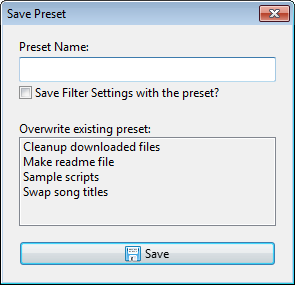
CreateSetauplisttheofdesired rules in the Rules pane.ConfigureOptionally configure filter settings,iftonecessary.include with the preset.- Press
CTRL +Ctrl+S, or usethePresets » Save Asmenufromoption.

YouPress canEsc abortor close the processdialog byto pressingcancel thewithout ESC key or closing the window.saving.
LoadLoading a preset
Saved presetsPresets can be loaded via the Presets » Load in the main menu or via the Presets Manager.
Loading a preset replaces the current set of rules. To add rules from a preset to the existing stack instead of replacing it, hold Shift while selecting the preset from Presets » Load.
For quick access, the topfirst 9nine presets can be loaded viadirectly CTRLusing + Ctrl+1 through CTRL + Ctrl+9. Presets are shortcut keys.sortedordered alphabetically, so youtheir shortcut assignment can rearrangebe their ordercontrolled by renaming them.
When you load a new preset you lose the current set of rules, if you had any.
You can also append rules from an existing preset to the current set of rules by holding down the SHIFT key when lading a preset via the Presets » Load menu. This feature is available since v7.1.0.6 Beta.
ManageManaging presets
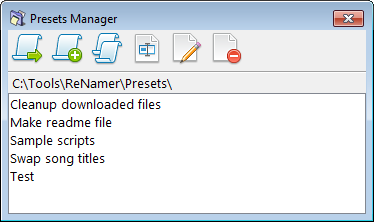
The Presets Manager offersprovides severala optionsdedicated interface for managing your collection of presets, including loading, merging,appending, duplicating,copying, renamingrenaming, editing, and deleting.
Youpresets. can accessOpen it via the Presets » Manage menu option or usingby thepressing CTRL + Ctrl+P shortcut from the main window.

Presets directory structure
The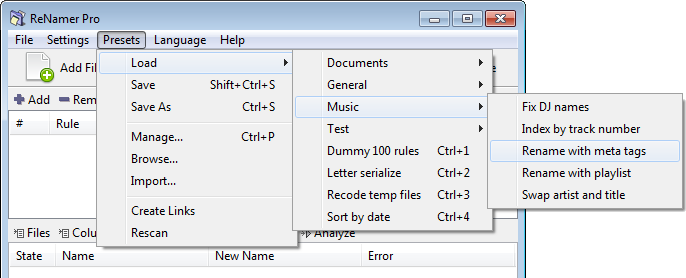
Preset files can be structuredorganised ininto asubfolders, directory hierarchy, as opposed to having them all in a single folder. This featurewhich is intendeduseful towhen simply the management ofmanaging a large collectioncollection. of presets.

To save a preset ininto a directorysubfolder, structure you just need to specifyinclude the structuredfolder pathname in the preset name when savingsaving, using a preset.
as a separator. For example, "Folder\Preset"entering willMusic\Cleanup savesaves a preset bynamed nameCleanup "Preset" ininside a folderMusic subfolder.
Presets can also be rearranged manually by name "Folder".
Alternatively, you can browsebrowsing to the presets folder via Presets » Browse and arrange them usingmoving the files in Windows Explorer.
LocateLocating and transferring presets
Presets are stored as plain*.rnp text files, locatedfiles in a Presets folder on disk. The exact location depends on the "Presets"installation folder:type:
- In a portable
version,installation,thisthe"Presets"Presetsfolder is located in the same directory as"ReNamer..exe"exe - In
anainstallerstandardversion,installation, it isnormallylocated in the user profile folder.
YouThe canfull findpath theis exactshown location by launching ReNamer and opening the Presets Manager via Main Menu » Presets » Manage (Ctrl+P). Atat the top of the window,Presets youManager willwindow. see the path to the presets folder. There is alsoThe Main Menu » Presets » Browse menu option whichopens willthat openfolder directly in Windows Explorer with the presets folder in view.Explorer.
To back up or transfer the stored presets to another location,computer simplyor installation, copy the *.rnp files.files from the source presets folder and place them in the presets folder on the target, or import them via Presets » Import.
See also Application Data Storage for additionalmore information on locating your application data.
Transfer presets
How to transfer presets between computers or multiple installations of ReNamer?
Open ReNamer on the source computer, and go to Main Menu » Presets » Browse. A file browser window should open at the location where your preset files are stored.
Copy the desired files, and then import them into ReNamer on the target computer by either manually placing the files in the presets directory or using Main Menu » Presets » Import.