
Presets Manager
TODO: Proof read, upload images, update links.Review.
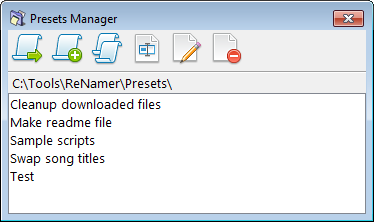
The Presets Manager offers several options for managing your collection of presets, including loading, merging, duplicating, renaming and deleting.
You can access it via the Main Menu » Presets » Manage or using the CTRL + P shortcut from the main window.


 Load a preset

Load the selected preset, replacing the current set of rules.
In addition to using the tool button, you can press ENTER key to load the currently selected preset.
- Hold
CTRLkey when loading a preset to automatically close the window. - Hold
SHIFTkey when loading a preset to append rules to the current preset.

 Append a preset

Append the current set of rules with rules from the selected preset.
This can be a handy way of merging rules from multiple presets.

 Copy a preset

Create a duplicate preset file with same rules.
This can be a handy way for creating a variation of an existing preset.
The duplicate preset will have the same base name with "COPY" appended to the end.

 Rename a preset

Rename the selected preset.
YouA prompt will be askedappear to enter the new name infor anthe input prompt.

You can use path delimiters in the new name to create a directory structure for presets.

 Edit a preset

Manually edit a preset file using Notepada text editor (texte.g. editor)Notepad). This is for advanced users only!
Warning:
- Avoid manual editing unless you really know what you are doing, and be aware that small mistakes can produce a corrupted preset.
- The editing of presets should normally be performed through the main interface by loading a preset, changing the rules, and then saving the preset.
Example of content in a preset file:

[Rule0]
ID=Insert
Config=TEXT:Example;WHERE:1;POSITION:1;INSERTAFTERTEXT:;INSERTBEFORETEXT:;RIGHTTOLEFT:0;SKIPEXTENSION:1
Marked=1
Comment=This is an example rule
Syntax:
- Rule definitions are contained within sections headed by
[Rule0],[Rule1]and so on. - Line
ID=identifies the type of rule. - Line
Config=contains encoded configuration of the rule.- Parameters are separated by a semicolon (
;). - Each parameter is stored in
Name:Valueformat. - Parameter values are URL-encoded.
- Parameters are separated by a semicolon (
- Line
Marked=stores the marked/unmarked state.
Comment= stores an annotation for the rule.

 Delete a preset

Delete the selected preset.
This action physically deletes the preset file.