
Presets Manager
TODO: Review.
The Presets Manager offers severalprovides options for managing your collection of presets, including loading, merging,appending, duplicating, renamingrenaming, and deleting.
You can accessOpen it via the Main Menu » Presets » Manage, or using thepress CTRL + Ctrl+P shortcut from the main window.
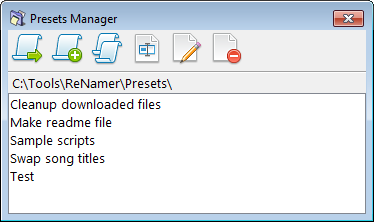
 Load a preset
Load the selected preset, replacing the current set of rules.
In addition to using the tool button, youYou can also press ENTEREnter key to load the currently selected preset.
- Hold
CTRLCtrlkeywhen loading a preset to automatically close the window. - Hold
SHIFTShiftkeywhen loading a preset to append rules from the selected preset to the currentpreset.set of rules.
 Append a preset
Append rules from the selected preset to the current set of rules with rules from the selected preset.rules.
This can beis a handyuseful way ofto mergingmerge rules from multiple presets.
 Copy a preset
Create a duplicate preset file with same rules.
This can be a handy way for creating a variation of an existing preset.
The duplicate preset will have the same base name with "COPY"COPY appended to the end.
This is useful as a starting point when creating a variation of an existing preset.
 Rename a preset
Rename the selected preset.
A prompt will appear to enter the new name for the preset.name.
You can use path delimiters in the new name to create a directory structure for presets.
 Edit a preset
Manually edit a preset file using a text editor (e.g. Notepad). This is for advanced users only!only.
Warning:
Example content in a preset file:file content:
[Rule0]
ID=Insert
Config=TEXT:Example;WHERE:1;POSITION:1;INSERTAFTERTEXT:;INSERTBEFORETEXT:;RIGHTTOLEFT:0;SKIPEXTENSION:1
Marked=1
Comment=This is an example rule
Syntax:
- Rule definitions are
containedgroupedwithinin sections headed by[Rule0],[Rule1], and so on. LineID=identifies the type of rule.LineConfig=contains the encodedconfigurationruleof the rule.configuration.- Parameters are separated by
a semicolon (;). - Each parameter
is stored infollowsName:Valueformat. - Parameter values are URL-encoded.
- Parameters are separated by
LineMarked=stores the marked/unmarkedstate.state of the rule.LineComment=stores an annotation for the rule.
 Delete a preset
Delete the selected preset.
This action physicallypermanently deletes the preset file.file from disk.