
Renaming folders
By default, ReNamer is configured to rename files only. When a folder is added, it is scanned recursively and the files it contains are added to the renaming list — the folder itself is not.
To rename folders themselves, open Filter settings and enable the Add folders as files option. To rename only folders without their contained files, also disable the Add files within folders option.
When both folders and their contents are included in the same rename operation, the order in which items are processed becomes critical. See the Conflicting renaming order section below.
Extensions in folder names
The Skip extension option found in many renaming rules can also affect folders. A separate setting, Folders also have extensions found in Settings, controls whether ReNamer treats periods in folder names the same way as it does in file names. When enabled, the portion to the right of the last period in a folder name is treated as the extension.
For example, consider folders named 01.Introduction, 02.Basics, and 03.Advanced. With Folders also have extensions enabled, 01, 02, and 03 are treated as base names, while Introduction, Basics, and Advanced are treated as their extensions.
Conflicting renaming order
Renaming a folder immediately changes the file system path of everything it contains. If both a folder and its contents are listed for renaming in a single operation, the order of items matters.
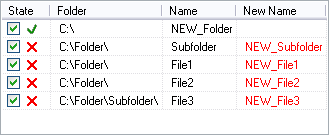
Items are processed from top to bottom. If a parent folder is renamed before its contained items, its path changes immediately in the file system — but ReNamer still holds the old paths for those items. When ReNamer then attempts to rename them at their original (now non-existent) paths, it cannot find them and the renames fail.
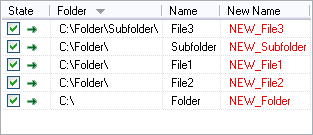
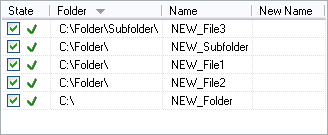
To avoid this, parent folders must always appear below their contained items in the list. This is easily achieved by sorting the list in descending order by the Folder or Path column. See Sorting files for details.
Example
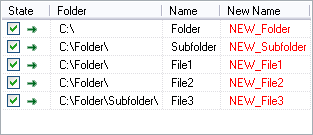
Suppose C:\Folder contains C:\Folder\Document.txt, and both are listed for renaming with Folder appearing above Document.txt in the list. When Folder is renamed to NewFolder, the document's path in the file system immediately becomes C:\NewFolder\Document.txt. However, ReNamer still has the document listed at its original path C:\Folder\Document.txt, which no longer exists, so the rename fails.
Problem occurred
Items as they appear after being added, without sorting.
| Preview | Rename |
|---|---|
 |
 |
Problem solved
Items after sorting in descending order by the Folder column.
| Preview | Rename |
|---|---|
 |
 |