
Sorting files
The order of items in the Files pane can affect the renaming outcome. This is most notable in two situations:
- When renaming folders and their contents together.
- When using the Serialize rule to assign sequential numbers to file names.
ReNamer supports two sorting modes:
- Manual sorting — a one-time reorder applied to the current list.
- Automatic sorting — items are always kept sorted, and newly added items are sorted automatically.
Manual sorting
To sort items manually, select a group of items and drag them to a new position using the mouse. Alternatively, use the Ctrl+Up and Ctrl+Down shortcuts, or the move commands in the Files context menu.
With manual sorting, newly added items are always placed at the end of the list, in the order they were added.
Automatic sorting
Click a column header in the Files pane to enable automatic sorting by that column. Clicking the same column header again toggles between ascending and descending order. The active sort direction is indicated by a small up/down arrow in the column header.
| Sorted by Name (ascending) | Sorted by Created Date (descending) |
|---|---|
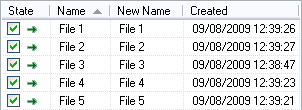 |
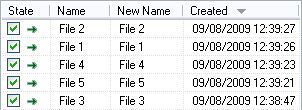 |
Not all columns are visible by default. Right-click on the column headers to open the Files header menu, where you can toggle additional columns on or off.
To retain the same sorting order in future sessions, enable the Remember sorting options setting in Settings.
Canceling automatic sorting
To cancel automatic sorting, right-click on the column headers and select Cancel sorting from the context menu. Once canceled, newly added items will appear at the end of the list in the order they are added.
Sorting by multiple columns
To sort by more than one column, apply sorting in multiple steps (one column at a time) starting with the least dominant column and ending with the most dominant.
For example, to sort files by folder name, with files within each folder sorted by modification date: first sort by the modification date column (least dominant), then by the folder name column (most dominant). The order established in the first step is preserved in the second step for items that are equal in the dominant column — that is, items within the same folder.
Preserving the original order
If you have already arranged items in a specific order (for example, in Windows Explorer) and want ReNamer to preserve that order, disable automatic sorting before adding items.
Note that due to a quirk of Windows, the order in which a selection of files is added may depend on the focused item. To preserve your intended order, always ensure the first item in the selection has focus. For example, when using drag-and-drop, drag the selection from the very first file.
When adding folders, their contents are added in the order determined by the file system, since folders are automatically scanned for contained items.