
Managing rules
TODO: Proof read, upload images, update links.
This sectionpage explains how to addadd, rules,remove, removeedit, rules,and editreorder rules in the Rules pane.
Most actions for managing rules are available via the toolbar above the pane, the right-click context menu, or keyboard shortcuts. See the Rules menu article for a rulefull and change the order in which they are applied to files and folders.reference.
Adding rules
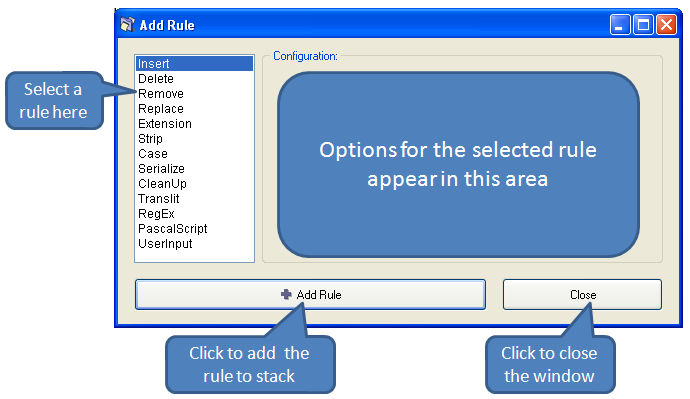
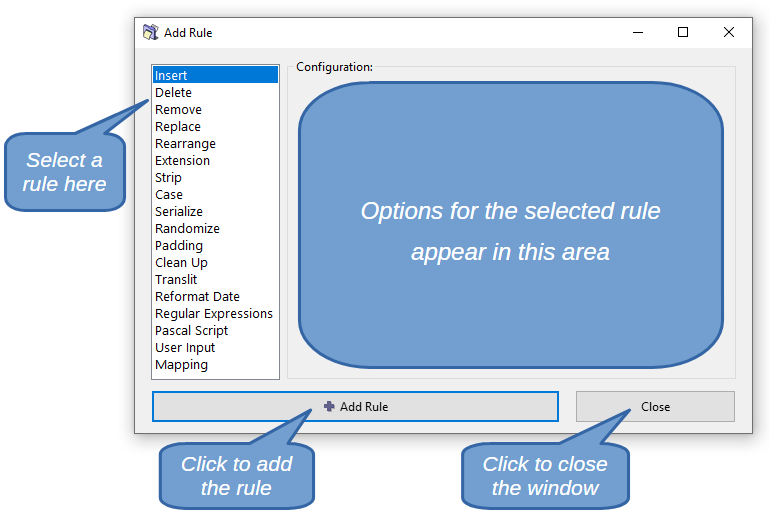
To
Insert key. You can 
Select
the desiredTo duplicate an existing rule, select it and press theShift+Ins, "Close"or buttonuse (orDuplicate Rule from the windowcontext closemenu. iconThe atduplicate is inserted immediately below the top right corner).
Removing rules
ToSelect removea (delete) an existing rule, select itrule and press DELDel, or clickuse onRemove Rule from the 
button.menu.
To remove all rules at once, press Shift+Del or use Remove All Rules.
Changing the order ofReordering rules
All rulesRules are applied to each file in the order they appear.appear Even within the pane. The same set of rules, the end-resultrules can beproduce very different ifresults the order of the rules is changed.
You can change the order of rules using any of the following methods:


Editing rules
Editing a rule means changing its parameters and options, and then saving the rule.
You can edit a rule using any of the following methods:
A window similar to the Add Rules window appears. There are only two minor differences: the button at the bottom is titled Save Rule, and the rules list in the left pane is greyed out (because you are not supposed to select rules in this window).
Change the parameters and options, and press the Save Rule button or ENTER.
Selecting a rule
When a rule is selected, its entire row is highlighted. Only one rule can be selected at a time.order.
To selectreposition a rule, use any of the following methods:following:
- Click
anywherethe Move Up or Move Down buttons in therowtoolbar.
Ctrl+Up or Ctrl+Down.
Drag the Editing rules
To edit an existing rule, use any of the following:
Enter.
Right-click it and select Edit Rule.
The rule's configuration dialog opens, pre-populated with the Upcurrent settings. Adjust the parameters and Downclick arrowSave keys on your keyboardRule to moveapply the selection to another rule.
changes.
Marking and unmarking a rulerules
AMarking is independent of selection. Only marked rules are applied during preview and renaming. Unmarked rules are skipped entirely.
Unmarking a rule is marked by putting a tickconvenient inway itsto checktemporarily box
. Conversely,disable it is unmarked bywithout removing it from the tick 
.pane.
ReNamerTo uses onlytoggle the marked rulesstate for the preview and renaming operations.
So unmarkingof a rulerule, isclick usefulits tocheckbox temporarilyor disableselect the rule without having to remove it from the Rules pane.
To mark/unmark the rules:
Spacebar. To mark or unmark all rules at once, use Mark All (Shift+M) or Unmark All (Shift+U) from the context menu.
Annotating rules
Any rule can be annotated with a custom comment, visible in the Comment column of the SpacebarRules pane. (onThis youris keyboard)
Repeatfor ofdocumenting anycomplex ofrules thesesuch actionsas togglesPascal theScript marked/unmarkedor status.Regular Expressions.
TheTo reasonsadd foror unmarkingedit a rulecomment, are:
Shift+Enter, Saving arules favoriteas presets
A set of rules thatcan yoube usesaved often.as However,a youpreset needand reloaded on demand, making it easy to removereuse acommon fewrule rulesconfigurations inacross somesessions. cases.See AUsing trickpresets isfor tomore saveinformation.