
Rules menu
The toolbar above the Rules table offers some quick actions:

- Add a new rule.
- Remove selected rules.
- Move up selected rules.
- Move down selected rules.
- Open the Presets Manager.
Right-click on the Rules table to see the context menu that offers extra options for manage rules.
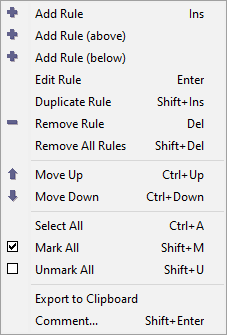
| Action | Shortcut | Description |
|---|---|---|
| Add Rule | Ins |
Add a new rule. The rules dialog will appear. |
| Add Rule (above) | Add a new rule above the selected rule. The rules dialog will appear. | |
| Add Rule (below) | Add a new rule below the selected rule. The rules dialog will appear. | |
| Edit Rule | Enter |
Edit the selected rule. The rules dialog will appear. |
| Duplicate Rule | Shift+Ins |
Duplicate the selected rule. Duplicated rule will appear just below the original rule. |
| Remove Rule | Del |
Remove selected rules. |
| Remove All Rules | Shift+Del |
Remove all rules. |
| Move Up | Ctrl+Up |
Move selected rules upward in the stack. |
| Move Down | Ctrl+Down |
Move selected rules downward in the stack. |
| Select All | Ctrl+A |
Select all rules. |
| Mark All | Shift+M |
Mark all rules. All rules will become active. |
| Unmark All | Shift+U |
Unmark all rules. All rules will become inactive.
This is useful if you have added too many rules and getting strange results. First, unmark all rules, so that none of them are active. Then, mark one rule at a time and see its incremental effect on the files. |
| Export to Clipboard | Export the description of all rules to Clipboard.
This can be useful for demonstrating and sharing your rules setup. |
|
| Comment... | Shift+Enter |
Annotate the selected rule with a custom description, which will be visible in the Comment column.
This can be useful for describing complex rules, such as Pascal Script and Regular Expressions. |