
Comparing hashes
Hasher provides two ways to compare hash values: verifying a file against a known hash string, and comparing two files directly against each other. Once files have been hashed, the comparison tools are accessible directly from the main window.
Verify against a known hash
Each hash row in the main window has a compare button that opens the Compare Hash dialog for that algorithm.
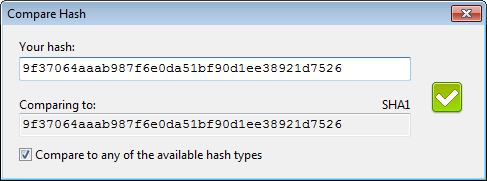
If the clipboard contains a recognisable hash string when the dialog opens, it is pasted in automatically. Otherwise, enter or paste the hash manually. The computed hash for the current file is shown below for reference, read-only.
By default, the comparison uses the algorithm corresponding to the button that was clicked. Enable Compare to any of the available hash types to match the entered hash against all enabled algorithms simultaneously. This is useful when you have a hash string but are unsure which algorithm produced it.
Compare two files
Hasher can compare two files directly against each other, which is useful for verifying that two copies of a file are identical, for example after a transfer or backup.
Both comparison modes are triggered by holding a modifier key when adding files, whether by drag and drop or via the toolbar. The active modifier is reflected as a checked option in the Options menu.
- Hold
Shiftwhen adding a file to compare it against the previously hashed file. - Hold
Ctrlwhen adding files to compare the next two added files against each other.
The Compare Files dialog opens as soon as hashing is complete.
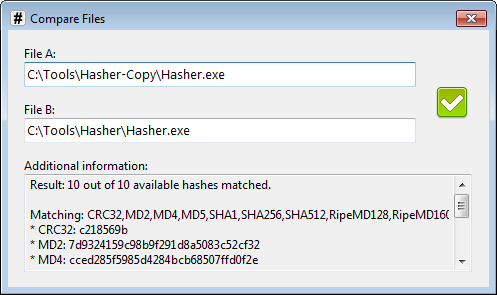
The Compare Files dialog shows the paths of both files, a green checkmark or red cross indicating the overall outcome, and a breakdown listing the matching and mismatching algorithms with their hash values.
Only algorithms enabled in both files at the time of hashing can be compared, so both files need at least some hash types in common for a meaningful result.