
Hashing files
Files can be added for hashing by drag and drop, by typing or pasting a path directly into the file path field at the top, or using the Add Files and Add Folder toolbar buttons.
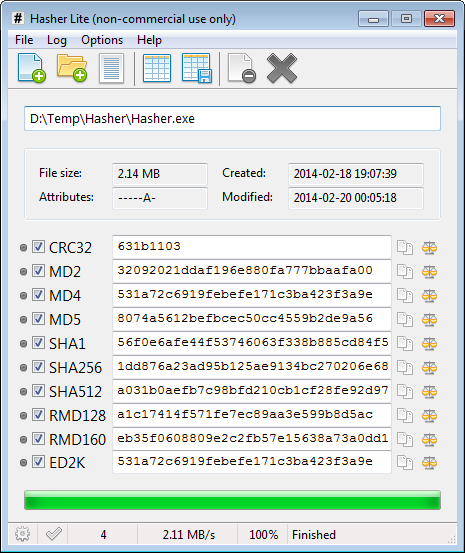
Once hashing is complete, file metadata (size, attributes, creation and modification dates) and the computed hash values for all selected algorithms are displayed in the main window.
Selecting algorithms
Each algorithm row has two controls on the left:
- The checkbox enables or disables the algorithm. Only checked algorithms are computed when a file is loaded.
- The dot button selects that algorithm exclusively, unchecking all others in a single click.
To bulk select or deselect all algorithms at once, use Select All (Ctrl+=) or Select None (Ctrl+-) from the Options menu.
The supported algorithms are: CRC32, MD2, MD4, MD5, SHA1, SHA256, SHA512, RipeMD128, RipeMD160, and ED2K.
Messages pane
The messages pane appears at the bottom of the main window and records warnings and errors encountered during hashing, such as cancelled files or comparison failures. It expands automatically when any issue occurs. Its contents can be copied or cleared via the Log menu or the right-click context menu within the pane.
Copying hash values
Each hash row has a copy button on the right that copies the corresponding hash value to the clipboard. Alternatively, double-click the hash field to select it and copy the value manually.
Comparing hashes
Once a file has been hashed, you can verify its integrity by comparing the computed values against a known hash string, or compare two files directly against each other. See Comparing hashes for details.