
Previewing files
Preview applies the active rules and shows the resulting names, without making any changes to files on disk. It is the essential step between setting up rules and committing to a rename.
Workflow
When a preview is triggered, each marked file is passed through the rule stack in order. Each rule transforms the name produced by the previous one, so the final result in the New Name column reflects all active rules applied cumulatively. This is why the order of rules matters — the same rules in a different sequence can produce a different outcome.
Only marked files and marked rules are included. Unmarked files are skipped and their New Name column remains empty. Unmarked rules are ignored, which is a convenient way to test the effect of individual rules without removing them from the stack. See Managing rules for more detail.
Preview results
After a preview, the Files pane reflects the following:
- The State column indicates whether each file is ready to rename or has a potential issue. A green arrow means the file is ready. A warning sign flags a problem such as a duplicate name or an invalid character.
- The New Name column shows the resulting name. If the Highlight changed names option is enabled, names that differ from the original are shown in a distinct colour, making unchanged files easy to spot.
- The Error column describes any detected issue for that file.
Note that preview validation can flag common problems in advance, but not every possible failure can be detected before the actual rename. See Validation for more detail on how warnings are generated.
The columns displayed in the Files pane can be customised. Many users prefer to show the Path and New Path columns to see full paths alongside names. To toggle columns, right-click the column header row. See Files header menu for more detail.
Example
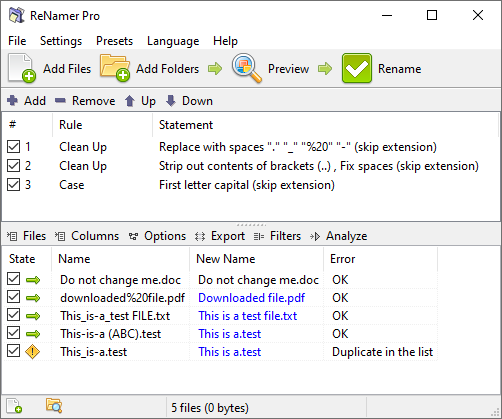
The example above has three rules in the stack: two Clean Up rules that replace punctuation characters and strip bracket contents, followed by a Case rule that capitalises the first letter of the name.
Do not change me.docis unaffected by the rules and its new name is shown in the same colour as the original.- The remaining files are transformed and their new names are highlighted.
- The last file produces
This is a.test, the same result as the file above it. The Error column flags this as Duplicate in the list, which would cause a conflict at rename time.
Automatic and manual preview
By default, preview updates automatically whenever files or rules change. This behaviour is controlled by the Auto preview option in Preview settings.
When Auto preview is disabled, preview must be triggered manually by clicking the Preview button or pressing F5. Manual mode is useful in two situations:
- When working with a large number of files, where automatic preview on every change would be slow.
- When using manual editing to fine-tune names after a preview, as triggering a new preview would overwrite those edits.
In both modes, files are renamed exactly as shown in the preview.