
Translit rule
This rule transliterates one alphabet into another. Its main goal is to transliterate Non-English characters from different languages into their English/Latin representation. The rule comes with built-in transliteration maps for many different languages, but you can also define your own custom mapping.
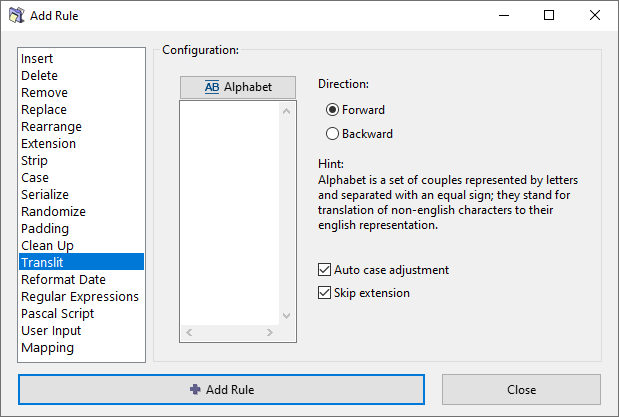
Options
Alphabet
Define a transliteration map or load an existing map from the menu. See how to work with transliteration maps in the sections below.
Direction
Select the direction for applying the transliteration: Forward (left to right) or Backward (right to left).
Auto case adjustment
Automatically adjust the text case of the output based on the case of the input. The exact algorithm is described in a section below.
Skip extension
If checked, the file extension will be excluded from processing and will remain unaffected.
Transliteration maps
To transliterate, we define pairs of equivalent characters or combinations of characters. For example, "ü" character in German language can be transliterated to "ue", so the name "Müller" becomes "Mueller" in English alphabet.
We need several such equivalent pairs to convert one language into another. The entire set is called a transliteration map. You can think of it as a kind of a find-and-replace rule.
The rule comes with built-in transliteration maps for many different languages, but you can also define your own custom mapping. Each map can be used in both directions (forward or reverse), for example the French map can be used as French-to-English or as English-to-French.
When you create a new rule, its window does not show any maps. You can now do one of the following:
- Use any of the built-in maps.
- Create your own map and use it.
- Edit a built-in map first, and then use it.
Let us see how to do this.
Use a built-in transliteration map
Press the  button to see the list of available transliteration maps for different languages.
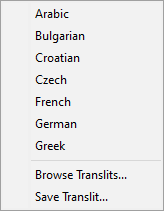
Click on the desired transliteration map to load it.
For an example, let's say we loaded the French transliteration map.
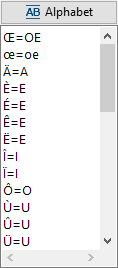
You can edit any of the entries in this list, add new entries, or delete any of the entries.
Note that such editing does not alter the saved version of the map, as it only applies to the current rule configuration. You will see how to alter an existing transliteration map and create a new map in a section below.
Next, select the direction for applying the transliteration: Forward (left to right) or Backward (right to left).
Make your own transliteration map
Transliteration map (or an "alphabet") consists of sets of equivalence pairs, which are entered one per line, and two parts of a pair separated with = (equal sign). The mapping should not contain spaces and should have case discarded (case is adjusted automatically).
Make sure to put couples which contain greater number of characters at the top, so they will get processed first and will not get processed partially by shorter representations.
Below is a simple example which can be used to transliterate German words:
ä=ae
ö=oe
ü=ue
ß=ss
Save a transliteration map
To save a newly composed or an edited transliteration map:
- Press the button.
- Select the "Save Translit..." option.
- Enter the name of your mapping in the dialog, and click OK.
- When editing an existing map, the dailog will show current map's name.
Transliteration maps are saved as individual files in a folder which can be located via the "Browse Translits..." menu option. If you delete any map files in that folder, they will no longer be available for loading in the rule configuration.
Automatic case adjustment algorithm
The transliteration process performs automatic case conversion with an algorithm adopted specifically for transliteration. The rule discards the case of the map definition, i.e. "A=B" is same as "a=b". The output case is determined based on the case of each input fragment. Multiple character fragments are treated as part of words, with their case determined based on the case of letters around them.
Let's consider a mapping pair INPUT=OUTPUT, where the INPUT token takes the case of a match in the original text. The logic for determining the case of the OUTPUT token is as follows:
set OUTPUT to lower case
if first letter in INPUT is upper case then
  if length of OUTPUT greater than 1 then
    if next letter in original name is upper case then
      convert whole OUTPUT to upper case
    else
      convert only first letter in OUTPUT to upper case
  else
    convert whole OUTPUT to upper case
Unicode character forms
Have you encounter a case where some characters don't get converted, despite having a visually identical character defined in the Translit alphabet?
Unicode characters can be defined using exact character codes or using combining characters. The displayed characters will look identical, but their binary content is different. The conversion process between these forms is covered by the Unicode Normalization standard.
Transliteration maps are defined using exact character codes, so variations that use alternative forms, including combining characters, will not be affected unless these forms are also defined in the map. You can put a piece of text through a Unicode analyzer tool to see exactly how each character is defined and to identify the use of combining characters.
To handle all possible forms of the same visual character, one could define all possible forms in an alphabet or one can simply strip away those combining characters, which can be accomplished by using the "Strip unicode marks" option found in the Clean Up rule.